You can run molecular dynamics (MD) simulations with your ChatGPT account through the local Codex desktop workflow and SimAtomic MCP. Connect https://mcp.simatomic.com/mcp, authorize SimAtomic access, and use Codex to upload prepared inputs, submit jobs, monitor progress, and download results. SimAtomic runs the simulation on remote GPUs while Codex works with files and analysis scripts in your local project.
This tutorial is for the desktop app’s local Codex workflow, signed in with your ChatGPT account. SimAtomic runs the simulations on remote modern GPUs. Jobs can run in parallel, and dedicated GPUs are available—contact us about dedicated compute.
Before you start
You’ll need SimAtomic credits for compute jobs. Contact us to get credits. Have your SimAtomic API key ready from your SimAtomic settings. Use a desktop installation with Codex access and a local folder for the study.
Check your system before submitting
The current preparation workflow supports a standard soluble protein, optionally with one valid, posed 3D ligand SDF, in explicit water. Read the scientific capabilities and limitations and parameter reference. SimAtomic compute credits and your assistant’s billing are separate; see pricing.
Run a simulation through an AI assistant: quick setup
In the desktop app’s Codex workflow, open Settings → MCP servers → Add server, choose Streamable HTTP, enter the SimAtomic URL, and authorize with your SimAtomic API key. Start a local project and check the available tools before submitting a job.
Requirements: A SimAtomic API key and a ChatGPT account.
Use this workflow to run a molecular dynamics test on prepared structures, follow several approved jobs in parallel, retrieve trajectory and analysis files, or prepare follow-up analysis of a completed simulation. Ask the assistant to inspect the current tool schemas and required input format before uploading data. See the SimAtomic API and simulation documentation for more detail.
Using Claude?
Follow the companion guide: Run Molecular Dynamics in Claude with SimAtomic MCP.
1. Open the MCP settings
In the desktop app, open Settings → MCP servers → Add server. On macOS, ⌘, opens Settings. These are the steps in OpenAI’s MCP setup guide.
2. Add the SimAtomic server
Use the following settings, save the server, and select Restart when offered:
| Name | simatomic |
| Transport | Streamable HTTP |
| URL | https://mcp.simatomic.com/mcp |
Click Save, then choose Restart if the app offers it. The new SimAtomic server will appear in the MCP server list.
3. Sign in to SimAtomic
Choose Authenticate beside SimAtomic in MCP settings. Codex opens the SimAtomic authorization page in your browser.
The browser opens Authorize Codex. Paste your SimAtomic API key into the field on that page, review the simatomic:jobs access, and click Authorize. Enter the key on the authorization page rather than in a chat prompt.
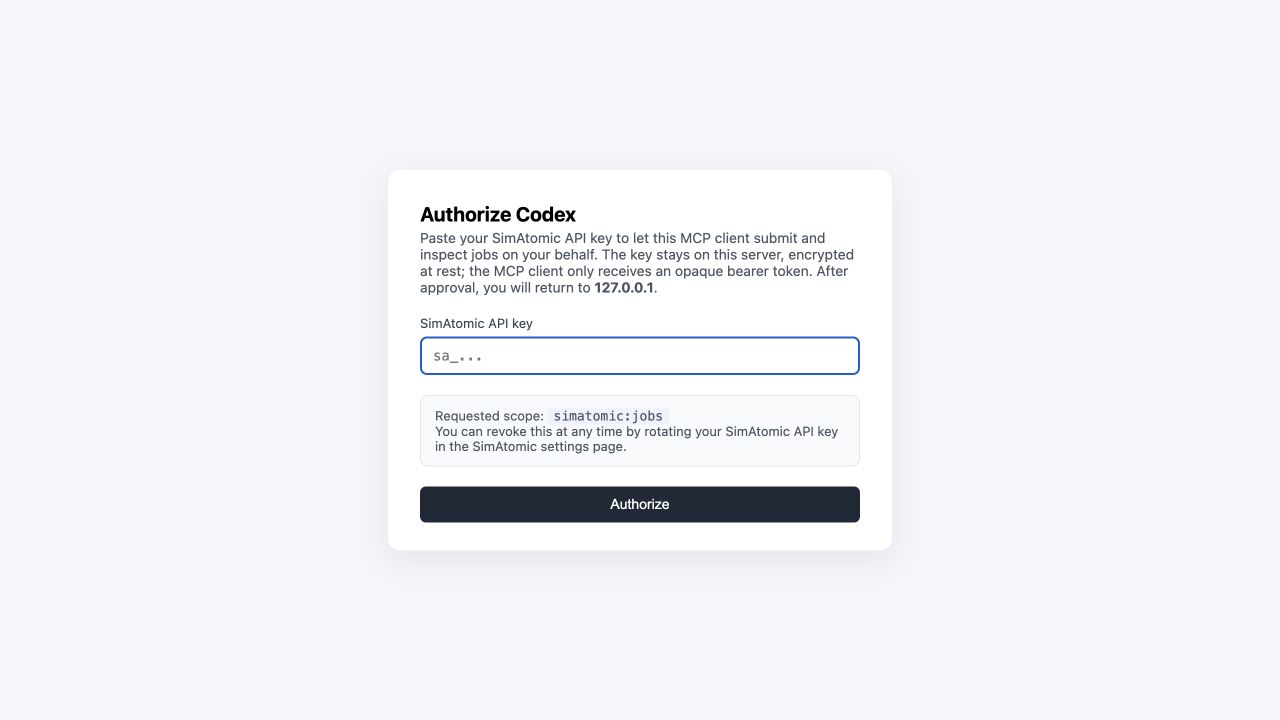
Return to Codex after approval. The SimAtomic server should remain enabled in MCP settings.
4. Confirm the connection
Start a new local Codex task and verify actual tool access with this prompt:
Prompt: What tools are available through my SimAtomic MCP server? Explain what I can do with them without uploading files or submitting a job.
Our connection check discovered nine tools: upload inputs from a URL or local file, check an upload, submit a job, list jobs, check job status, get result downloads, prepare follow-up analysis, and get an analysis dashboard link.
5. Work from a local project
Create or open a project linked to a dedicated local folder, such as SimAtomic-study, and start a local Codex task there. Keep your input structures in the folder. Codex can write analysis scripts, save plots, and download result archives into the same workspace. See OpenAI’s project guidance.
Local files and analysis stay organized on your computer while SimAtomic handles remote GPU compute. Ask for a plan before starting your first paid run:
Prompt: Use SimAtomic to check [input filename] in this project folder and prepare a short MD test. Show the input issues, simulation settings, and estimated runtime and credits if available. Wait for my confirmation before uploading or submitting anything.
Review the proposed setup, resolve input issues, and confirm the run. Save its job ID for follow-up:
Prompt: Check SimAtomic job [job ID]. If it has finished successfully, download the results into this project folder and explain the files. Save any analysis scripts in scripts/ and their plots in analysis/.
Start with a workflow test
A short simulation can check that preparation, submission, and retrieval work. Choose production timescales and replicate runs around your scientific question before drawing conclusions about binding or stability.
Optional: set up SimAtomic with the Codex CLI
Scientists can complete the full setup in the desktop interface above. If you prefer a terminal, Codex stores the desktop and CLI MCP configuration on the same computer, so the following commands provide an equivalent setup and verification route:
codex mcp add simatomic --url https://mcp.simatomic.com/mcp
codex mcp login simatomic
codex mcp get simatomic
Keep the terminal open while completing authorization in the browser. A successful sign-in prints Successfully logged in to MCP server 'simatomic'.
If setup gets stuck
- Server saved, but no tools? Finish authentication and start a fresh local task. Inspect
/mcpfor connection errors. - Authorization did not finish? Return to MCP settings, choose Authenticate again, and complete the newly opened authorization page. If the error persists, contact SimAtomic with the error and your Codex version.
codexcommand not found? Use the desktop MCP settings, or follow the official CLI installation guide.- Using ChatGPT in a web browser? Local Codex configuration does not configure ChatGPT web. This post covers the local desktop workflow.
Questions about running simulations with ChatGPT and Codex
Can ChatGPT run molecular dynamics simulations with SimAtomic?
This guide uses a ChatGPT account with the local Codex desktop workflow. After connecting SimAtomic through MCP, Codex can submit molecular dynamics jobs, monitor them, and retrieve results from remote GPU compute.
What MCP URL and authentication does Codex use?
Add https://mcp.simatomic.com/mcp using Streamable HTTP. Complete OAuth by entering your SimAtomic API key on the Authorize Codex page. After authorization, ask Codex to list the available tools.
Does this configure SimAtomic in ChatGPT on the web?
No. The setup in this guide configures local Codex. ChatGPT in a web browser has a separate integration setup; adding a local MCP server does not configure that web account.
Can SimAtomic jobs run in parallel without a local GPU?
Yes. SimAtomic jobs run on remote modern GPUs and can run in parallel. Compute jobs require available SimAtomic credits. Contact SimAtomic for dedicated GPU capacity. Codex can save downloaded results and analysis scripts locally.
Also read: Run Molecular Dynamics in Claude with SimAtomic MCP.
Connect your next simulation workflow
Get help with SimAtomic access, credits, and the Codex connection.
Contact SimAtomic