You can run molecular dynamics (MD) simulations from Claude by connecting the SimAtomic MCP server at https://mcp.simatomic.com/mcp. Claude uses SimAtomic tools to upload prepared inputs, submit simulation jobs, monitor progress, and retrieve results. SimAtomic performs the compute on remote GPUs; Claude helps organize the workflow and analyze the outputs.
Simulations run remotely on modern GPUs. Jobs can run in parallel, and SimAtomic provides dedicated GPUs for teams that need dedicated compute capacity. Contact us about dedicated GPUs.
Before you start
You’ll need SimAtomic credits for compute jobs. Contact us to get credits.
Check your system before submitting
The current preparation workflow supports a standard soluble protein, optionally with one valid, posed 3D ligand SDF, in explicit water. Read the scientific capabilities and limitations and parameter reference. SimAtomic compute credits and your assistant’s billing are separate; see pricing.
Run a simulation through an AI assistant: quick setup
Use Claude Desktop in Code mode, add SimAtomic under Customize → Connectors, complete authorization, then create a project with the + beside Projects and connect it to a local folder.
Requirements: SimAtomic access, a SimAtomic API key for authorization, available SimAtomic credits for compute jobs, and access to the client’s local coding workflow. Protocol: Model Context Protocol (MCP) over Streamable HTTP. Server: https://mcp.simatomic.com/mcp.
Use this workflow to run a molecular dynamics test on prepared structures, follow several approved jobs in parallel, retrieve trajectory and analysis files, or prepare follow-up analysis of a completed simulation. Ask the assistant to inspect the current tool schemas and required input format before uploading data. See the SimAtomic API and simulation documentation for more detail.
Using ChatGPT or Codex?
Follow the companion guide: Run Molecular Dynamics with ChatGPT and Codex using SimAtomic.
1. Use Claude Desktop in Code mode
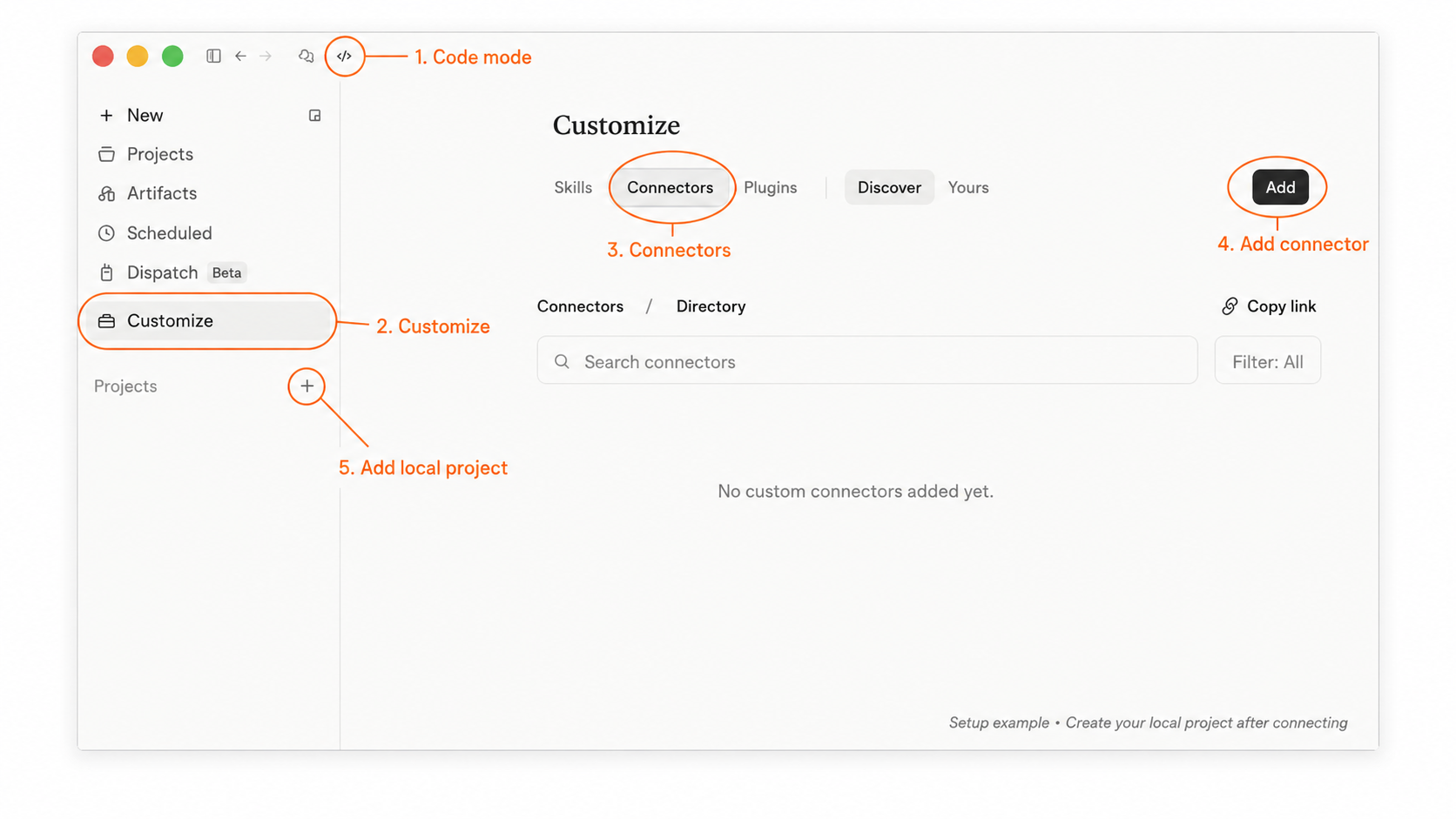
For this workflow, use the Claude Desktop app and select Code mode (the </> button, callout 1 below). With a local project folder, Claude can write and save analysis scripts, run them with your installed tools, and download results directly into your workspace. This keeps inputs, scripts, trajectories, and plots together for later reuse. Get Claude Desktop and check Code access requirements.
In the desktop app, open Customize → Connectors (callouts 2 and 3), then click Add (callout 4) to open the custom connector form. Older versions may show this under Settings → Connectors → Add custom connector. If SimAtomic is already listed, open it and skip to step 3.
2. Add SimAtomic
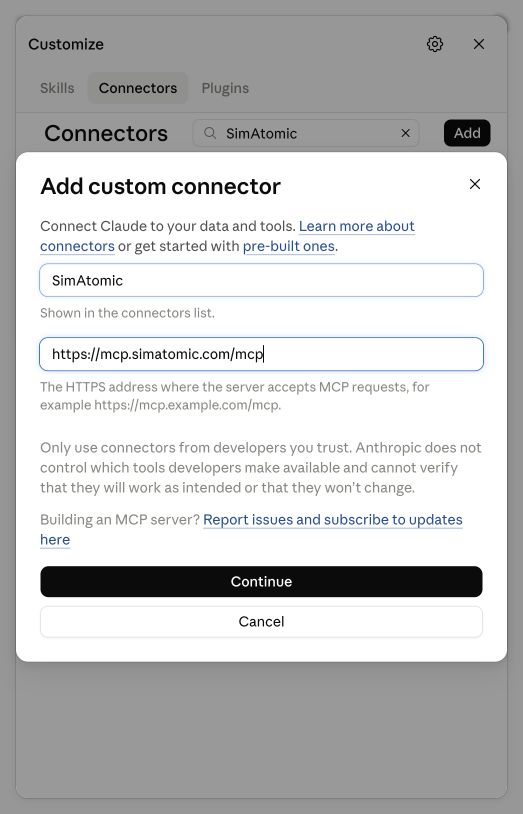
Enter the following details in the custom connector form:
| Name | SimAtomic |
| Remote MCP server URL | https://mcp.simatomic.com/mcp |
Click Continue and follow the remaining setup prompts. If advanced OAuth client fields appear, leave them empty unless SimAtomic has supplied specific values.
3. Connect your account
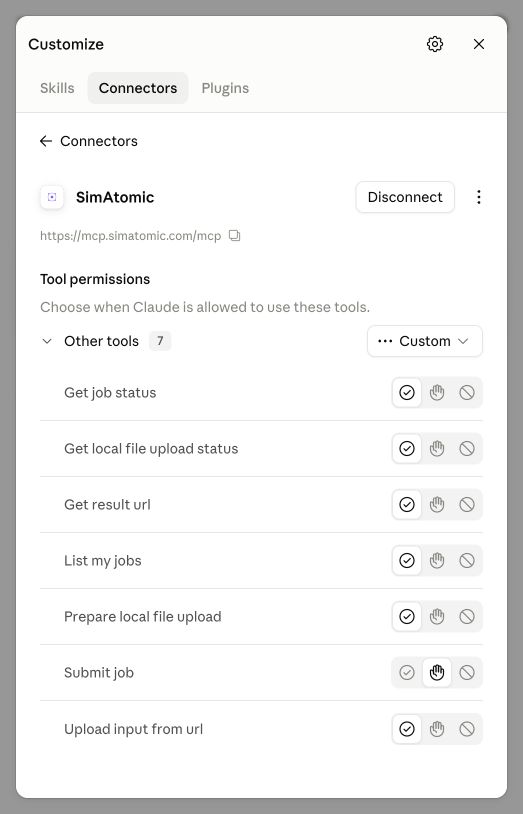
Choose Connect if prompted, then sign in on the SimAtomic screen. Review the requested access and approve it to finish linking your account. Back in Claude, open SimAtomic’s details: a Disconnect button and the tool list indicate an active connection. Set Submit job to Needs approval so you can review each submission.
On a Team or Enterprise account, an organization owner may need to add SimAtomic before members can connect. See Claude’s custom connector guide for the current account and setup requirements.
4. Create a local project folder
After connecting SimAtomic, click the + beside the Projects section heading in the sidebar (callout 5 in the first image). Create a new project and connect it to a local folder, such as SimAtomic-study. Open that project, use Code mode, and work from its local folder.
Place your input structures in that folder and work from the same project for setup, job monitoring, downloads, and analysis. Local mode gives Claude access to your working files; SimAtomic simulations still run on remote GPUs. Claude can save its analysis scripts and downloaded outputs in the selected folder.
5. Check the connection
In your new local Code session, open + → Connectors beside the prompt box and check that SimAtomic is available. Paste this prompt:
Prompt: What tools are available through my SimAtomic connector? Explain what I can do with them without submitting a job.
Look for tools such as List my jobs, Get job status, Submit job, and Get result url. You can also ask Claude to list your existing jobs to verify account access without starting new compute work.
6. Try your first workflow
Save your prepared structure in the project folder, then reference its filename in your prompt and ask Claude to check the input and plan a short test:
Prompt: Use SimAtomic to check [input filename] in this project folder and prepare a short MD test. Show me any input issues, the proposed simulation settings, and the estimated runtime and credits if available. Wait for my confirmation before uploading or submitting anything.
Review the structure preparation and settings, resolve any issues, then confirm the run. If the connector needs a prepared archive or another upload route, have Claude explain the required format before proceeding.
Save the job ID Claude returns. You can use it to follow up:
Prompt: Check the status of SimAtomic job [job ID]. If it has finished successfully, download the results into this project folder and explain the output files. Save any analysis scripts you create in a scripts subfolder and their plots in an analysis subfolder.
Start small, then choose the scientific timescale
A short test helps check that the workflow runs. It does not establish binding affinity or long-term stability. Choose production lengths and replicate runs around the scientific question you want to answer.
7. See a complete Claude simulation session
The interactive example below shows the full workflow together: Claude checks and repairs an unsupported input, asks for confirmation before submission, follows the remote GPU job, summarizes the results, and opens the completed trajectory beside the chat. The trajectory viewer includes frame controls, temperature, Cα RMSD, RMSF, potential-energy drift, contacts, and simulation metadata.
Open the full Claude session demo →
This is a condensed example session and demonstration trajectory. Use the results from your own SimAtomic job for scientific interpretation.
If something doesn’t connect
- Cannot add a connector? Check your Claude plan’s connector allowance or ask your workspace owner to add SimAtomic.
- Connection or authentication error? Check the full HTTPS URL, then reconnect and complete the authentication flow.
- Claude cannot see the tools? Check the connector in Customize → Connectors, then start a new Code session in your local project folder.
- A job fails? Ask for the returned error and check the input and account credits before resubmitting.
Questions about running simulations with Claude
Can Claude run molecular dynamics simulations?
Yes. With the SimAtomic MCP connector and compute credits, Claude can submit molecular dynamics jobs to SimAtomic, check their status, and retrieve results. The simulation runs on SimAtomic’s remote GPUs.
What is the SimAtomic MCP server URL for Claude?
Use https://mcp.simatomic.com/mcp as the remote MCP server URL. Name the connector SimAtomic and complete the authorization flow.
Do I need a local GPU to run simulations through Claude?
A local GPU is not required for SimAtomic simulation jobs. Compute runs remotely. Claude Desktop Code mode uses your local project folder for input files, downloads, analysis scripts, and plots; local analysis requires suitable installed tools.
Can I run simulations with ChatGPT or another MCP client?
The companion ChatGPT and Codex tutorial covers the Codex desktop connection. Other clients need remote Streamable HTTP MCP and compatible authentication; support should be checked in each client.
Also read: Run Molecular Dynamics with ChatGPT and Codex using SimAtomic.
Bring your next simulation into the conversation
Connect once, then use Claude to plan, monitor, and retrieve your SimAtomic work.
Open Claude Connectors